
With Linkwart you decide which Safari window opens a link. Its name uses the German “-wart”, the suffix for someone who looks after a particular thing, as in Gerätewart or Platzwart: someone who keeps the links in order.
Left to itself, macOS chooses the window, and the choice looks arbitrary: the link opens in some Safari window, often the one you can use least. Even a window you minimized with Cmd+M can get the link, and it springs open out of nowhere. With Linkwart you pick the target window, and that is where every link opens from then on.
How it works#
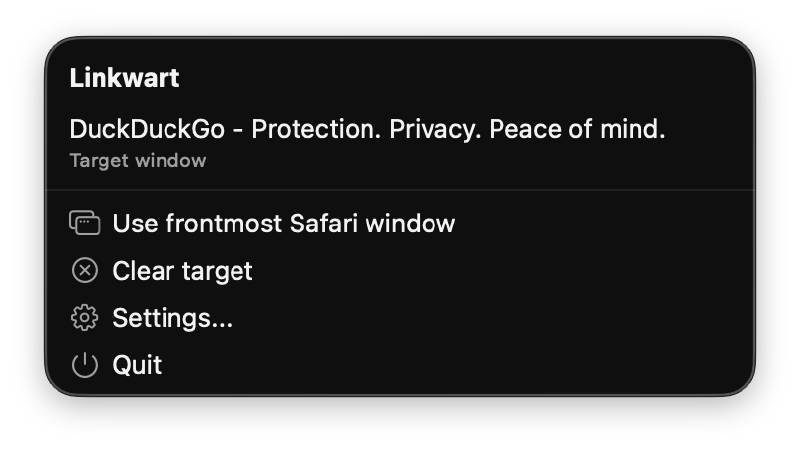
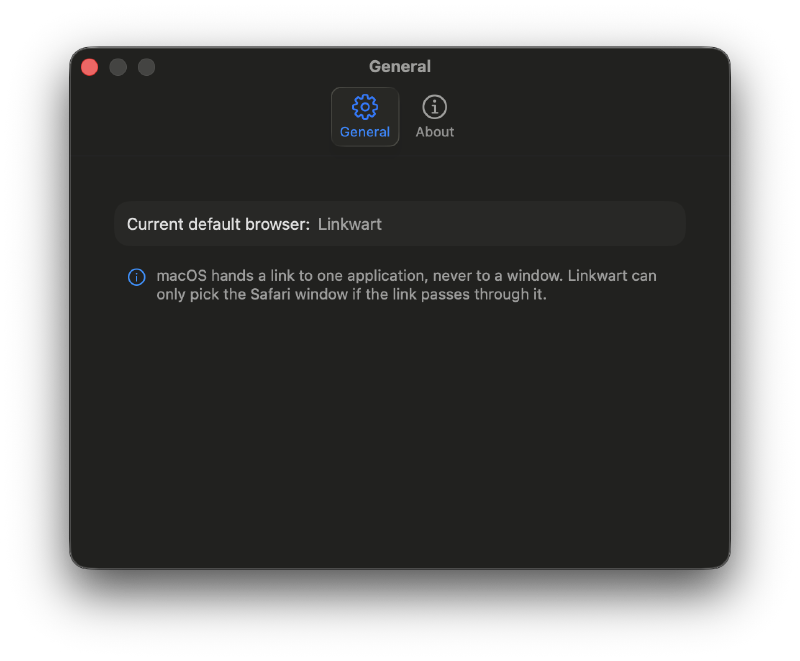
You set Linkwart as the default browser in Settings. From then on it catches every link and hands it off to the right Safari window. Which one that is, you decide: bring the window to the front, pick it in the menu, done.
Linkwart remembers it by Safari’s internal window ID, which holds for as long as Safari runs - through switching tabs, minimizing, and moving to another Space.
Already using Finicky, Velja or Choosy?#
Then the router stays your default browser. Only its Safari destination changes: point it at the bundle identifier de.kevinhorst.Linkwart instead of at Safari itself. It works exactly as before, only better - Safari links now open in the window you picked.
Download and installation#
With Homebrew:
brew tap head1328/linkwart \
  https://codeberg.org/head1328/homebrew-linkwart
brew trust --cask head1328/linkwart/linkwart
brew install --cask linkwart
Without Homebrew: download Linkwart
, unzip it, and drop it into /Applications. The download is notarized by Apple. In-app updates then run through Sparkle
against a self-hosted appcast - no server component, and every update is verified against an EdDSA key.
Requirements#
- macOS 26 or later
- Permission to control Safari, which macOS asks for on the first link
Privacy#
- No account, no login, no cloud
- No analytics, no telemetry
- No network traffic beyond the update check against linkwart.de
License#
MIT. The source lives openly on Codeberg; contributions, issues, and forks are welcome. Bundled icon assets are covered by their own licenses.
Found this helpful?
Consider supporting via: